How to Use
Welcome to My List! This guide will help you get started and make the most of the app's features.
1. Save to Home Screen (Install as App)
For the best experience, you can save My List directly to your device's home screen, making it feel like a native app.
- On Android (Chrome):
- Open the app in Chrome.
- Tap the three-dot menu icon in the top right corner.
- Select "Add to Home screen" or "Install app".
- Follow the on-screen prompts.
- On iOS (Safari):
- Open the app in Safari.
- Tap the Share button (square with an arrow pointing up) at the bottom of the screen.
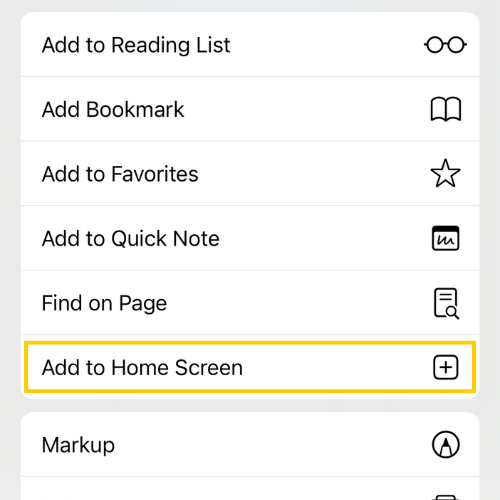
- Scroll down and select "Add to Home Screen".
- Tap "Add" in the top right corner.
2. Create & Select Lists
My List allows you to manage multiple lists, perfect for groceries, tasks, or anything else!
- When you first open the app, you'll see the "Select a List or Create New" screen.
- Tap the " Create New List" button.
- Enter a name for your new list and tap "Create".
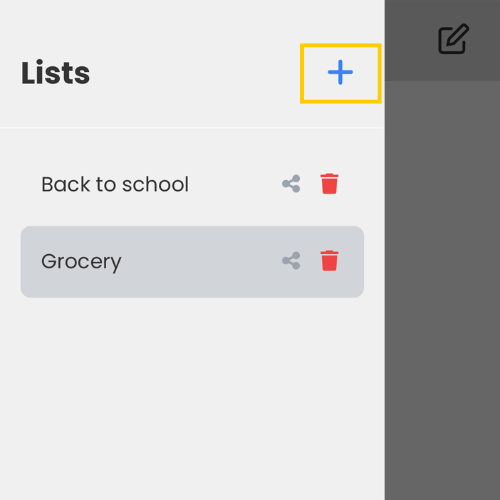
- To switch between lists, tap the Menu icon () in the top left corner to open the sidebar.
- From the sidebar, tap on any list name to open it.
3. Add & Manage Items
Once you've selected a list, you can start adding and managing items.
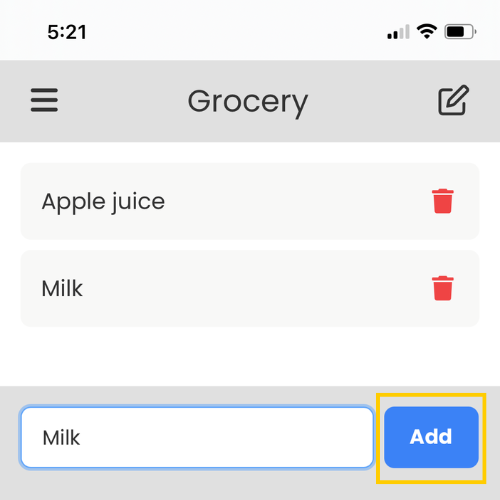
- Add Item: Type your item in the input field at the bottom and tap "Add".
- Cross Off Item: Double-tap or double-click an item to mark it as completed (it will get a strikethrough). Double-tap again to unmark.
- Delete Item: Tap the trash can icon () next to an item to remove it.
4. Reorder & Edit Items
You can easily reorder items within a list and edit their names.
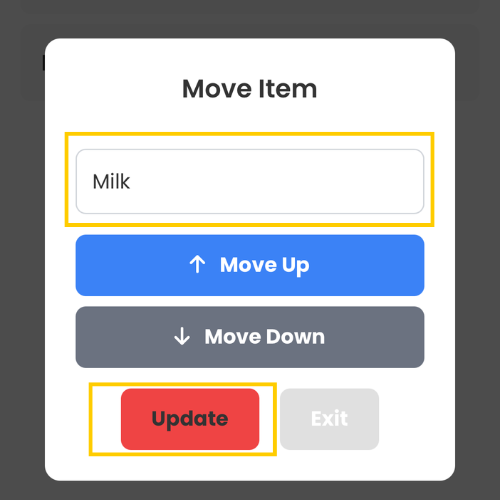
- Move/Edit Item: Long-press (on mobile) or right-click (on desktop) an item to open the "Move Item" modal.
- In the modal, you can:
- Edit the item's name.
- Use the "Move Up" () and "Move Down" () buttons to change its position.
5. Reorder & Rename Lists
Organize your lists by reordering them or giving them new names.
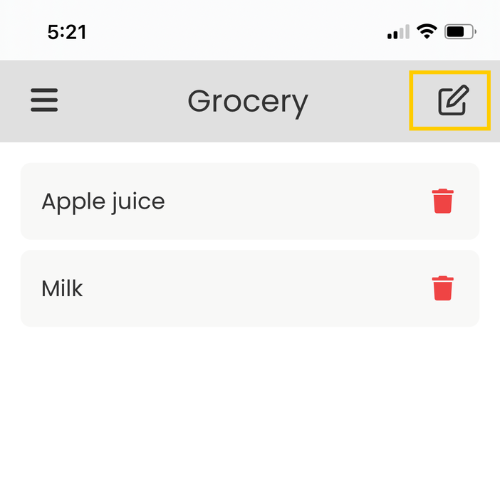
- Rename Current List: While a list is open, tap the edit icon () next to the list name in the header.
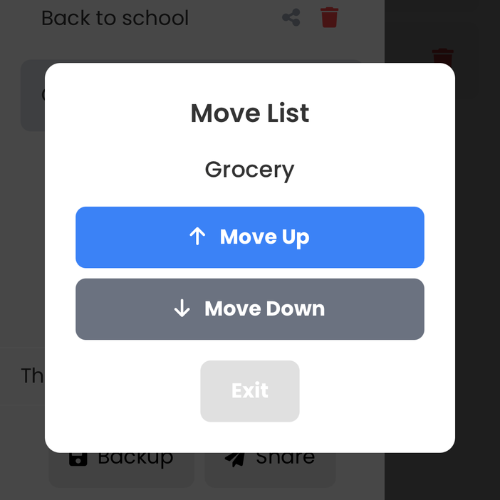
- Move List: Open the sidebar (). Long-press (on mobile) or right-click (on desktop) a list in the sidebar to open the "Move List" modal. Use the "Move Up" and "Move Down" buttons to change its order.
6. Share Lists with Others
Collaborate by sharing your lists! People you share with can open the list and cross off items, and their changes will persist locally for them.
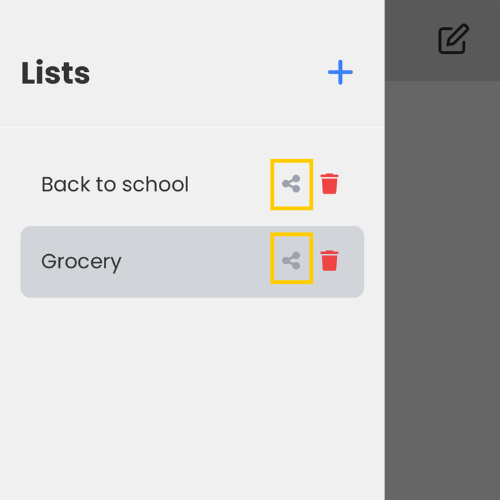
- Open the sidebar ().
- Tap the share icon () next to the list you want to share.
- A share link will be generated. You can then use your device's native sharing options or copy the link to send it.
- When someone opens the shared link, they will see your list. They can cross off items, and those changes will be saved in their browser. They can also re-share the updated list.
7. Backup & Restore Your Data
Protect your lists by exporting them to a JSON file, and import them back later to restore or merge data.
- Open the sidebar ().
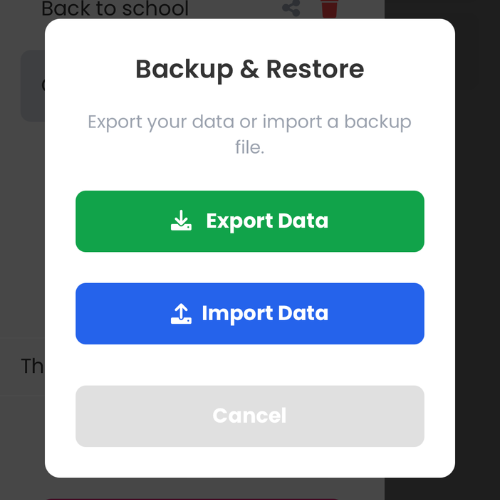
- Tap the "Backup" button ().
- In the modal:
- Export Data: Tap "Export Data" to download a JSON file containing all your lists.
- Import Data: Tap "Import Data" and select your backup JSON file. The app will intelligently merge the imported lists and items with your existing data, adding new entries and updating existing ones without duplicates.
Powered by Xvoox